







We’ve all been there. Maybe you blocked someone in the heat of the moment. Maybe it was to stop spam calls, avoid awkward conversations, or simply create some space. Blocking a contact on an iPhone is quick and effective—but what happens when you decide it’s time to reconnect? Whether you’ve resolved a misunderstanding, changed your mind, or accidentally blocked someone, learning how to unblock them is just as important as knowing how to block them in the first place.
If you’re using an iPhone running the latest version of iOS, the good news is that unblocking someone is straightforward. However, depending on how the person was blocked—through Phone, Messages, FaceTime, or Mail—the steps can vary slightly. In this guide, we’ll walk through the easy methods that actually work and help you regain control over your contact settings without confusion.
Why People Get Blocked in the First Place
Before diving into the steps, it’s worth understanding how blocking works on an iPhone. When you block someone, their calls go straight to voicemail, their messages don’t appear in your inbox, and they cannot reach you through FaceTime. Essentially, your device silently filters them out.
Blocking can be incredibly helpful for managing unwanted communication. But life changes. Situations evolve. Relationships improve. Or sometimes, you realize you blocked the wrong number entirely. The important thing to remember is that blocking is not permanent. You can reverse it at any time through your settings.
How Blocking Works on iPhone

On an iPhone, blocking is managed through system settings tied to your Apple ID and communication apps. Whether you’re using an iPhone 13, iPhone 14, or any newer model, the process is similar across devices as long as you’re running a modern version of iOS.
Blocked contacts are stored in a centralized list. This means that once someone is blocked, they are blocked across Phone, Messages, and FaceTime simultaneously. However, email blocking is managed separately within Mail settings.
Understanding this system makes it easier to locate and remove someone from the blocked list.
The Main Method: Unblocking Through Settings
The most reliable way to unblock someone is through your iPhone’s Settings app. This method works regardless of how the person was originally blocked.
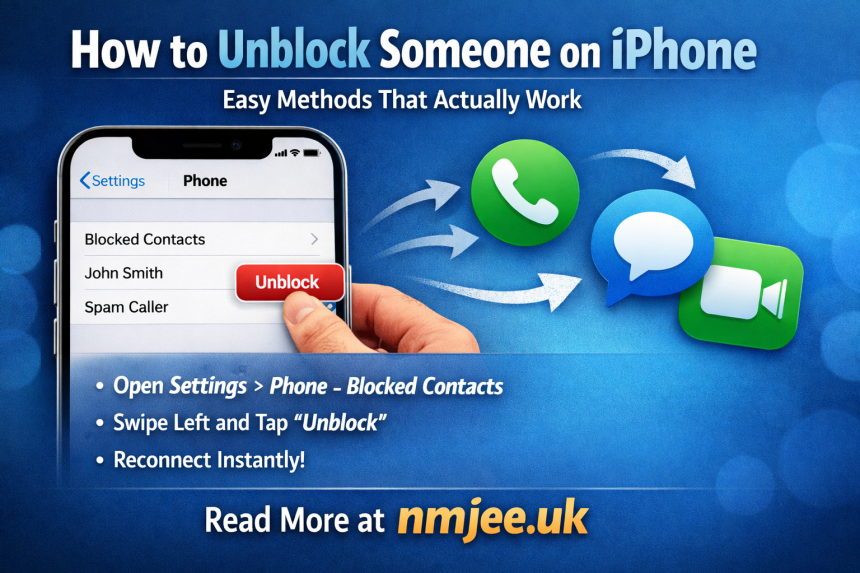
Start by opening the Settings app on your iPhone. Scroll down and tap on “Phone.” Inside the Phone settings, you will see an option labeled “Blocked Contacts.” Tap on it.
Here, you’ll see a list of all phone numbers and contacts you’ve blocked. If the person you want to unblock is on this list, swipe left on their name. A red “Unblock” button will appear. Tap it, and they are instantly removed from the blocked list.
That’s it. The change takes effect immediately. They can now call, text, and FaceTime you again.
This method is consistent across most versions of iOS and is generally the fastest way to restore communication.
Unblocking Someone Through Messages

If you originally blocked someone through the Messages app, you can also access the blocked list from there.
Open Settings again and scroll down to “Messages.” Tap it, then select “Blocked Contacts.” You will see the same list of blocked numbers and contacts.
Swipe left on the name you wish to unblock and tap “Unblock.” Once removed, their text messages will begin appearing again if they contact you.
Keep in mind that any messages sent while the contact was blocked will not be delivered retroactively. Once unblocked, only new messages will come through.
Using FaceTime Settings to Unblock
If FaceTime was the main issue, the process is similar. Go to Settings and tap on “FaceTime.” Scroll down to find “Blocked Contacts.”
Again, you’ll see the complete blocked list. Swipe left on the contact’s name and tap “Unblock.” The person can now initiate FaceTime calls with you.
Because Apple integrates blocking across communication apps, you may notice that removing someone from one list removes them everywhere. That’s completely normal and part of how the system is designed.
How to Unblock Email Addresses on iPhone
Email blocking works slightly differently. If you blocked someone’s email address in the Mail app, you’ll need to adjust that separately.
Open Settings and scroll down to “Mail.” Tap on it, then choose “Blocked.” You will see a list of blocked email addresses.
Swipe left on the address you want to unblock and tap “Unblock.” After doing so, their emails will once again appear in your inbox rather than being automatically filtered.
This separation exists because email communication functions differently from phone calls and messaging within Apple’s ecosystem.
What Happens After You Unblock Someone?
Unblocking someone does not notify them. They won’t receive a message saying they’ve been unblocked. From their perspective, communication simply becomes possible again.
However, it’s important to understand what does not happen. Any calls made while blocked will not appear in your recent call history. Text messages sent during the blocked period will not be delivered. Blocking essentially creates a communication gap that cannot be recovered once lifted.
After unblocking, everything functions normally moving forward.
Troubleshooting: When Unblocking Doesn’t Seem to Work
Sometimes users report that even after unblocking a contact, communication still doesn’t go through. If that happens, there are a few things to check.
First, make sure the number was correctly entered in your contacts. If the person has multiple numbers, you may have unblocked one but not the other.
Second, confirm that your device is updated to the latest version of iOS. Software updates often resolve minor bugs that can affect communication settings.
Third, ask the other person to verify they are dialing the correct number and not using an outdated contact entry.
If problems persist, restarting your iPhone can refresh system processes and resolve temporary glitches.
Managing Privacy and Communication Boundaries

Learning how to unblock someone is more than a technical skill. It’s also about managing your digital boundaries. Your iPhone gives you full control over who can contact you, and that control is important.
Sometimes blocking is necessary for safety and peace of mind. Other times, it’s a temporary decision made during emotional moments. The flexibility to unblock someone allows relationships to evolve naturally without permanent digital barriers.
It’s also helpful to periodically review your blocked list. Over time, it’s easy to forget who was blocked and why. Checking your list ensures you’re not unintentionally limiting communication with someone important.
Differences Across iPhone Models
Whether you’re using an iPhone SE or a newer model like the iPhone 15, the process remains nearly identical. Apple maintains consistent settings navigation across devices to simplify user experience.
The interface may look slightly different depending on screen size or iOS version, but the path—Settings, then the relevant app, then Blocked Contacts—remains the same.
This consistency is one reason many users find iPhones easy to manage when it comes to privacy settings.
Final Thoughts: Reconnecting Made Simple
Unblocking someone on an iPhone is quick, intuitive, and entirely within your control. Whether you’re reversing a momentary decision or reconnecting after time apart, the process takes less than a minute once you know where to look.
The key steps involve navigating to Settings, locating the Blocked Contacts list under Phone, Messages, FaceTime, or Mail, and swiping to remove the contact. Once done, communication resumes immediately for future calls, texts, and emails.
Technology should serve your relationships—not complicate them. By understanding how blocking and unblocking work within iOS, you can confidently manage your communication preferences without frustration.
At the end of the day, your iPhone is designed to make connection simple. And when you’re ready to reconnect, the solution is just a few taps away.